
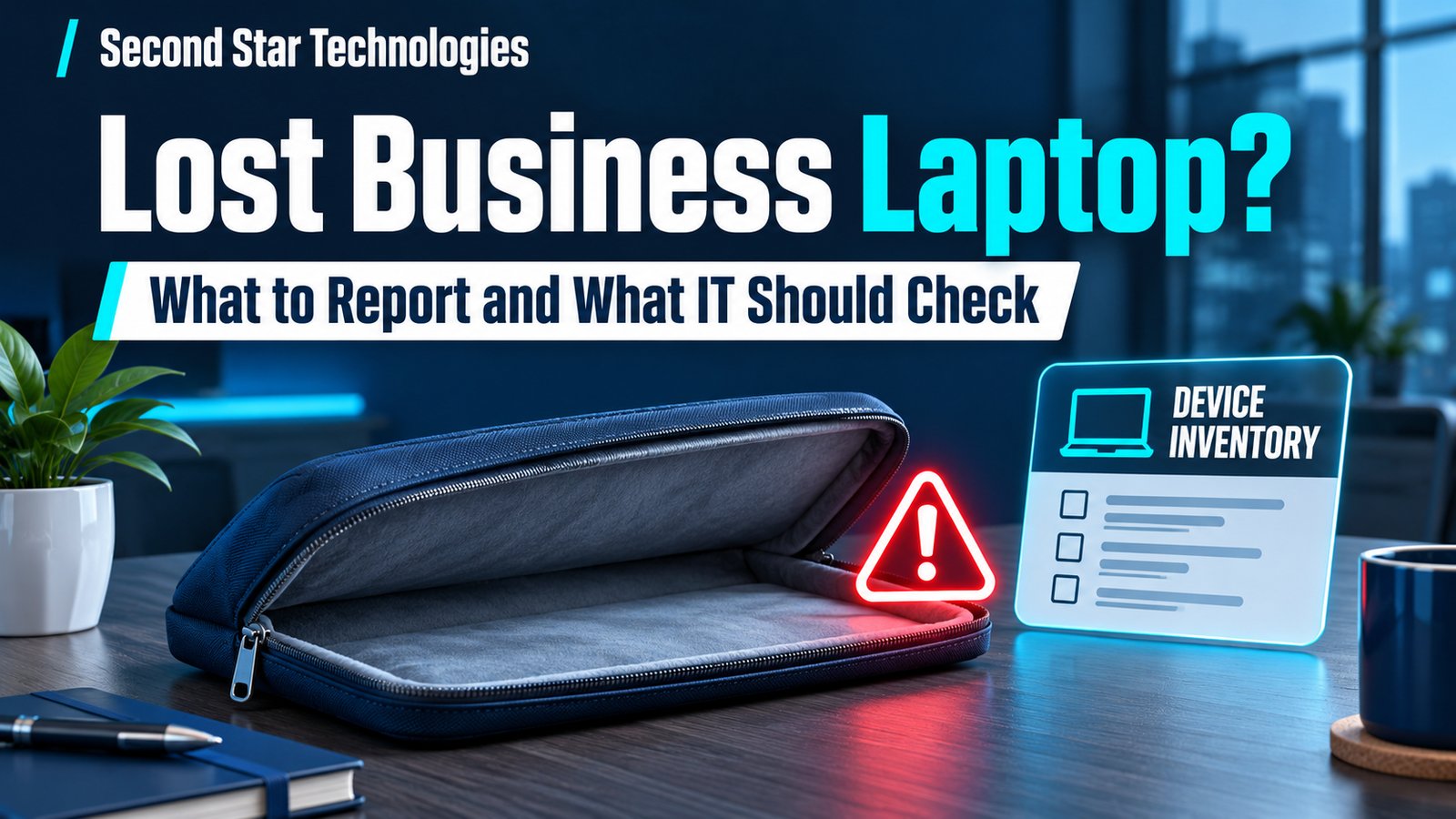
Lost Business Laptop? What to Report and What IT Should Check
Brandon Phipps
If a business laptop goes missing, notify your designated business contact and IT provider promptly. Give them enough detail to identify the computer and assess the information and accounts involved. Searching for the device can continue while the response begins.
Listen to this article
What should you do when a business laptop is lost?
Report the loss, identify the device, record when and where it was last seen, and explain whether it was unlocked or in use. IT should assess the last verified encryption and management status, review account access, and document available containment actions. A named business owner should coordinate decisions and follow-up.
This checklist helps a small business organize that response. It is an editorial worksheet, and the actions needed depend on the device, its configuration, and the information involved.
Report the facts you have now
A useful first report describes the computer and the circumstances. If the serial number isn't available, give IT the assigned user's name, computer name, model, or asset label. Say which details are confirmed and which are estimates.
- Who used the laptop and who can be reached on an alternate phone.
- When it was last seen and when the loss was discovered, including the time zone.
- Its last known location and any relevant travel or service-desk reference.
- Whether it was powered on, signed in, locked, asleep, or shut down, if known.
- Whether a phone, security key, paper records, or another device is also missing.
- Which business applications and locally stored records may be involved.
Send the report through the approved channel. Avoid putting passwords, recovery keys, customer records, or access tokens into an ordinary support ticket. Record who received the report and the next contact time.
Give one person responsibility for the response
Choose a business decision-maker and a technical lead. The owner or authorized manager can approve business disruption and outside communication. IT can investigate access and recommend technical actions. A small company may assign several roles to the same person, but each responsibility should still be clear.
Keep one incident record. Capture the facts, actions, timestamps, approvals, and unresolved questions there. Preserve relevant system records through the authorized responder. NIST's incident-response guidance provides a broader framework for preparation, response, and recovery; the worksheet here applies that approach to a missing device.
Check encryption evidence and device status
Ask IT for the last verified encryption status and its timestamp. “We normally encrypt laptops” leaves the specific machine unresolved. Record whether evidence exists for the missing device and what it shows. A stale or incomplete status should stay labeled as uncertain.
Record the last management check-in and any available security alerts. These observations can inform the assessment, but they cannot establish everything that happened after the computer disappeared. Avoid turning the absence of an alert into a declaration that information is safe.
The technical review should also consider the reported lock state, available recovery credentials, local files, and removable storage. The person responsible for privacy or legal review should assess the evidence and remaining uncertainty when determining any obligations.
Review business accounts and active connections
List the email, cloud storage, remote access, browser profiles, and business software used on the laptop. Ask the responder to assess sessions, stored credentials, authenticators, and connected applications. Containment may affect the employee's ability to work from a replacement computer, so coordinate that handoff.
Keep a record of which controls were changed and how the result was verified. A password change alone is not evidence that every session or application connection has ended. Review the relevant service's controls and the integration's actual access.
Our Microsoft 365 access handoff checklist provides related account and data-ownership questions. A lost-device response has its own timing and incident decisions.
What can remote lock or wipe actually do?
Have IT check the action supported by the device's platform, enrollment, configuration, and management product. Microsoft's Intune documentation explains that managed devices need internet connectivity to receive remote commands, and action availability varies. A missing laptop may be offline.
Record an action's actual state. Requested, pending, failed, and completed mean different things. Keep any confirmation and its timestamp. Do not report a successful wipe merely because someone clicked the command.
A wipe can erase data and affect evidence or recovery options. The authorized responder should weigh those effects before an authorized administrator performs it. Avoid deleting the management record as a casual cleanup step during an active response.
Use a lost-device response log
| Item | Evidence or action | Owner and next check |
|---|---|---|
| Device identity | Asset name, assigned user, model, serial when available | IT inventory owner |
| Loss report | Last seen, discovery time, reported device state | Employee and manager |
| Protection status | Last verified encryption and management checks | Technical lead |
| Account containment | Services reviewed, approved changes, results | Technical lead |
| Remote action | Supported action, approval, status, confirmation | Authorized administrator |
| Business assessment | Potential information involved and specialist follow-up | Business decision-maker |
| Recovery | Replacement setup, restored work, remaining issues | IT and employee |
Use “unknown” when evidence is missing. Assign someone to resolve each unknown and set a review time. That gives the next person a usable starting point without guessing.
Restore work from an approved replacement
Before issuing another laptop, confirm the employee's identity through the established process. Prepare the replacement under the normal device and account controls, then restore approved business data. Check the files and applications needed for the employee's immediate tasks.
Distinguish data saved centrally from files that may have existed only on the missing computer. Our guide to testing business recovery explains why a successful file restore should be followed by a real work check.
If the laptop is recovered, tell the responder before reconnecting it to business services. Let IT decide how to inspect and return it to service. Record where it was found and who handled it.
Lost business laptop FAQs
Should an employee wait until the search is finished to report it?
Report promptly through the business's designated channel, even while searching. Update the report if the computer is found.
Can IT wipe any laptop remotely?
No. Supported actions depend on the management system, device platform, enrollment, configuration, and connectivity. IT should verify the actual capability and result.
Does encryption automatically close the incident?
Use verified encryption evidence as part of the assessment. Account sessions, device state, other missing items, and the information involved still need review.
Who decides whether outside notifications are needed?
The business should involve its designated privacy, legal, insurance, or other responsible contacts as appropriate. Document their assessment rather than assuming a universal notification deadline.
Prepare before a device goes missing
Second Star Technologies helps Bakersfield and Kern County businesses discuss device support, account protection, and recovery planning. Review our managed IT services, cybersecurity services, and data backup services. Request a review of the device inventory, response contacts, and available management controls.
Read the audio summary transcript
A missing laptop can leave a business owner with several unanswered questions at once. What was on it? Was it locked? Can IT do anything while it's offline? The first useful step is to report what you know and assign someone to coordinate the response.
Welcome to The IT Edge: Business Tech Made Simple, from Second Star Technologies. Today we're talking about what to report when a business laptop goes missing, and what your IT provider should check.
Start with the device identity. Give IT the assigned user's name and the computer name, asset label, model, or serial number if you have it. Explain when it was last seen, when you noticed it was missing, and whether it was signed in or locked. If you aren't sure, say so. An honest unknown is more useful than an assumption.
Tell the response contact if anything else disappeared with it. A phone, security key, or printed document can change what needs attention. Use an alternate phone number so the business can reach you while access is being reviewed. Keep passwords and recovery keys out of the report.
Next, give the incident an owner. Someone needs to coordinate technical work and business decisions, and keep a record of actions and results. Your IT provider may lead the technical assessment, while an authorized manager handles business approvals and any outside contacts.
Ask for evidence about the particular device. When did it last check in? What was its last verified encryption status? Were there relevant security alerts? A general statement that the company encrypts its laptops doesn't answer the question for this machine. Keep the timestamp with each observation.
Account access also needs attention. The responder should consider email, cloud storage, remote access, saved credentials, active sessions, and connected applications. Coordinate any approved changes with the employee's replacement setup so essential work can resume under the right controls.
Remote actions need careful wording. A management service may support a command for one device and not another. Microsoft's Intune guidance says devices need internet access to receive remote commands. If the laptop is offline, a command can remain pending. Requested isn't the same as completed.
A wipe can also affect data and evidence. Let the authorized responder assess that decision before an administrator performs it, and keep the actual outcome in the incident record.
For recovery, prepare an approved replacement and check a real business task. Can the employee open the needed records and use the application? Identify any files that may have existed only on the missing computer. If the laptop is found, contact the responder before reconnecting it.
Finally, review what would make the next response easier. Keep device ownership current, document reporting contacts, and verify protection and recovery controls before you need them.
Second Star Technologies can discuss these device, account, and recovery questions with Bakersfield and Kern County businesses. The article's response log gives your team a place to record the evidence, the decision-maker, and the next check.
References
Microsoft. (n.d.). Device actions. Microsoft Learn. https://learn.microsoft.com/en-us/intune/device-management/actions/
Microsoft. (n.d.). Wipe devices. Microsoft Learn. https://learn.microsoft.com/en-us/intune/device-management/actions/wipe
Nelson, A., Rekhi, S., Souppaya, M., & Scarfone, K. (2025). Incident response recommendations and considerations for cybersecurity risk management: A CSF 2.0 community profile (NIST SP 800-61 Rev. 3). National Institute of Standards and Technology. https://doi.org/10.6028/NIST.SP.800-61r3
Written by Brandon Phipps, owner of Second Star Technologies. Technical sources reviewed November 6, 2026.

Brandon Phipps
Brandon Phipps is the owner of Second Star Technologies in Bakersfield, California. His work includes business computer and network support, cybersecurity services, and backup and disaster recovery planning. He writes practical business technology resources for the Second Star Technologies website. Connect with Brandon on LinkedIn.
Blog posts